You open a Canva template, swap in your own words, and the result still looks like every other post in the feed. The font is clean and the layout is tidy, yet something still reads as the default. I see this on small business pages all the time, and you probably feel it too before you can say why.
The font is rarely the problem. I wrote this so you can fix it in one sitting. Below you get the reason a Canva sans serif looks like a template, the few things that make one sans look more chosen than another, a one-minute test you can run on your own text, and four settings that fix most of it without leaving Canva.
Quick answer: A Canva sans serif looks like the default because the same four or five names sit on most templates. Keep a sans you like, but change its weight, its letter spacing and its capitals, or pair it with a serif. When the library runs out, upload a font with a commercial license.
If you need a face the library does not have, browse sans serif fonts with a commercial license on Creative Fabrica.
Why Canva Sans Serif Fonts Look Like the Default
Free Canva fonts are the same for every user, and that is the first reason for the look. Canva gives every user the same library. The sans serif fonts that look best at a glance, Montserrat, Poppins, Open Sans and Lato, are the ones the template makers reach for first. So they sit on a huge share of templates, and your eye has seen them hundreds of times before you open your own design.
That repetition is what reads as “default”. The letters are fine. What gives the design away is that nothing about the type was decided. The template picked the font, the size and the spacing, and you only replaced the words.
A sans serif looks like the default when nobody chose its weight, its spacing or its partner.
You do not have to leave the font. You have to make three or four small decisions the template made for you. The next sections show which ones matter and how to test them. For a wider view of what works together, Canva font combinations is the place to start, and you can also browse Canva-ready fonts.
What Makes One Sans Serif Look Cheaper Than Another
Modern sans serif fonts all look clean at a glance, and two of them can still feel very different on a finished design. Five traits explain most of the gap.
- Letter shape. Geometric fonts build letters from circles and straight lines, so o is almost a perfect circle. Humanist fonts keep a little handwritten variation. A geometric face feels modern and cold, a humanist one feels warm and readable.
- Width. A wide sans looks calm and expensive in a short headline. A narrow one looks urgent and fits more words, but a condensed face on a quiet brand looks like a sale banner.
- Openings. Look at the gap in c, e and s. Wide openings keep small text readable. Tight ones look heavy and dated at a small size.
- Spacing. Default spacing is made for body text. In a headline it is usually too tight, and the line looks crowded.
- Weight. Regular weight everywhere is the clearest sign of a template. A real contrast between a light line and a bold line is what a designer does first.
Notice that none of these traits is “which font”. Four of the five are settings. That is why the same font can look cheap on one post and polished on the next. I judge a sans by these five before its name, and beautiful modern fonts applies the same eye to other styles. If a trait is missing from the free library, clean sans serif fonts with a commercial license are a quick comparison.
Sans Serif Fonts in Canva Everyone Already Uses

These are the safe, popular names. They are readable, they are free in the library, and they are exactly why so much work looks alike.
- Montserrat. A slightly geometric, contemporary face. Probably the most common headline sans in Canva.
- Open Sans. A neutral, highly readable face that works for body text and nothing else.
- Poppins. A geometric sans that looks clean in titles and in blocks of text.
- Lato. A warm, sleek face that balances structure with friendly curves.
I would not ban them. Open Sans is a good body font precisely because nobody notices it. The trouble starts when one of these is also your headline, at regular weight, with default spacing. Use them for small text and give the headline something with more character, or change how you set them using the fixes below. You can see one popular sans in a branding context in Univers: a sans serif font that sells, and modern sans serif fonts on Creative Fabrica show what sits outside the library.
For a deeper look at what separates a strong bold face from a cheap one, read modern bold fonts without the cheap look.
Less Common Free Sans Serif Fonts in Canva
The library holds many more sans serif fonts than the four above. These are less overused, and each has a clear job.
- League Spartan. A heavy geometric face made for strong display headers. Good for social graphics and posters.
- Oswald. A condensed, punchy face that saves space in a title. Use it in capitals and keep the line short.
- Public Sans. Strong, neutral and structured. It suits a clean editorial or corporate look.
- Raleway. An elegant, light face with thin strokes. Works large, falls apart small.
- Glacial Indifference. A minimalist geometric face with a quiet, modern feel.
- Quicksand. A rounded, soft face for friendly, relaxed designs.
Availability changes, and some fonts carry a Pro label depending on your plan. Check the font in your own account before you build a whole brand on it. For a softer, trend-led take, Y2K Canva fonts you can keep after export lists faces that survive a download, and you can see minimalist sans serif fonts for a quiet alternative.
A different font will not rescue a design on its own, though. Run the test in the next section before you decide.
One Phrase, Four Fonts, Three Sizes: The Test
This is the check I run before I commit to a sans serif, and it takes about a minute inside Canva.
- Take one real phrase. Use the actual headline from your project, not “Your text here”. Include a capital letter and a number if you have them.
- Set it in four sans fonts. One from the popular list, three from the less common list, all at the same size.
- Make three sizes. The size of your headline, half of it, and the smallest size the design will show, for example a story caption seen on a phone.
- Look at the smallest one first. Shrink the preview or step back. The font whose letters still separate wins on readability.
- Look at the largest one last. Pick the face you would still like to see on the fiftieth post. Charm fades fast on a repeated headline.
Most of the time you will find that the popular font wins at the small size and a less common one wins at the large size. That is not a problem: it is the answer. Use one font for each job. You can add a fifth candidate from geometric sans serif fonts and run the same test on it.
Four Fixes That Make Any Sans Serif Look Chosen
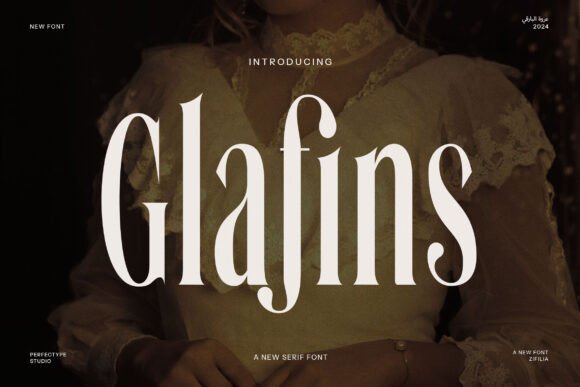
These four changes cost you nothing and work on any sans, including the popular ones.
- Change the weight. Set the headline in a bold or semibold weight and the supporting line in a light one. Do not leave both at regular. The contrast tells the eye where to start.
- Open the letter spacing. In Canva’s text spacing panel, add a little space between letters in a headline or in small capitals. A few steps up is often enough. The line looks calmer and more expensive at once.
- Use capitals on short lines only. A short label or kicker in capitals with open spacing looks deliberate. A whole sentence in capitals looks like shouting.
- Add a serif partner. A sans headline with a serif subtitle, or the reverse, is the oldest move in layout. The next section shows three ways to do it.
Try the fixes one at a time and compare. Usually the weight and the spacing do most of the work, and I change them first. If you still see the default look, try a bold sans serif font for the headline. For more Canva font pairs, font pairing: two fonts, one job each shows how to give each font a single role.
Pairing a Sans Serif With a Serif
Good Canva font pairs start here. A serif partner is the quickest way to stop a sans from looking like a template. The sans carries the headline or the body. The serif adds a second voice for the subtitle, a quote or a price-free label.
Here are three safe directions, described by role rather than by a fixed list of names:
- Bold sans headline, classic serif subtitle. The most common advice in the field, and it works because the contrast in shape is obvious. Keep the serif regular weight.
- Light sans headline, italic serif accent. One word in italic serif inside a light sans line. Elegant, and good for personal brands. Use it once per design.
- Condensed sans labels, serif body. Tiny capital labels in a narrow sans over a serif paragraph. Editorial in feel, and readable.
- The plan. Uploading your own fonts needs a paid Canva plan. The free plan stays with the library.
- The license. The font must allow commercial use and embedding in your designs. A file that is “free” on a download site is often personal use only, and a post for a client or a product you sell is commercial.
- A Canva sans serif looks like the default because the same few fonts sit on most templates and nobody set their weight or spacing.
- Four of the five traits that separate a cheap sans from a chosen one are settings: weight, spacing, capitals and a partner font.
- Test one real phrase in four fonts at three sizes before you commit.
- A sans with a serif partner and a real contrast in weight rarely looks like a template.
- The library is the same for everyone. Uploading your own font needs a paid plan and a commercial license.
Two rules keep any pair working. First, limit the design to two fonts. Second, change at least two things between them, such as shape and weight. If the pair looks almost the same, it reads as a mistake, not a choice. To pick the serif half, serif fonts: how to pick the right style helps, and serif fonts with a commercial license gives you a tested starting point.
When the Canva Library Stops Being Enough
The library is the same for every user. Its best sans names are the ones you keep seeing, so a design built only from the library can match the default no matter how carefully you set it. That is the limit, and it has nothing to do with your taste.
Canva lets you go beyond it. On a paid plan you can upload your own font file to a Brand Kit, and Canva accepts common formats such as OTF, TTF and WOFF. Two conditions matter:
Read the license before you upload anything. A font that opens in Canva is not automatically one you may use for a paying client.
When you reach that point, look at fonts that include a commercial license. The license comes with the file, so you have nothing to track down later.
Fonts With a Commercial License to Upload Next to Your Sans
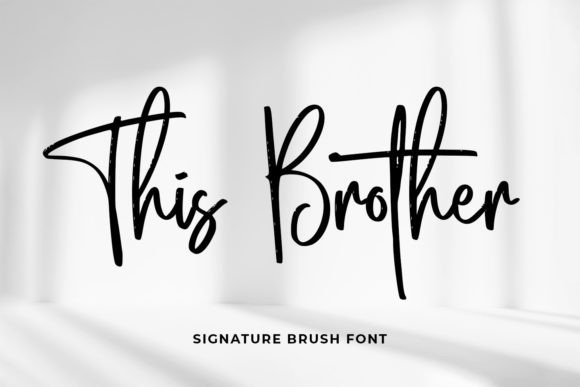
A plain sans is rarely the rare find. Most of what you will see on Creative Fabrica for Canva is script, handwritten or display lettering, and that is useful: those are the partners that make a sans look chosen. These come with a commercial license on Creative Fabrica. Run the test from earlier on the preview before you buy anything.
First, three display faces. You set these for one short line, and a plain sans carries the rest.
Unlimited creative assets. Access to AI tools.
Commercial licence included.
Browse allCommercial license included

Milkshake
A fun, colourful, friendly display font. Best for a headline on a children’s activity or a school project, set beside a quiet sans for the body text.
Commercial license included

Retro Hungry
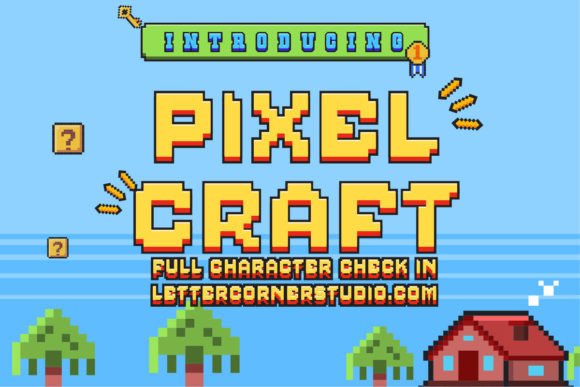
A fresh, groovy display font listed for logos, stickers and branding, with swashes reachable through its glyph set. Best for a logo word or a sticker line, with a plain sans doing the rest.
Commercial license included

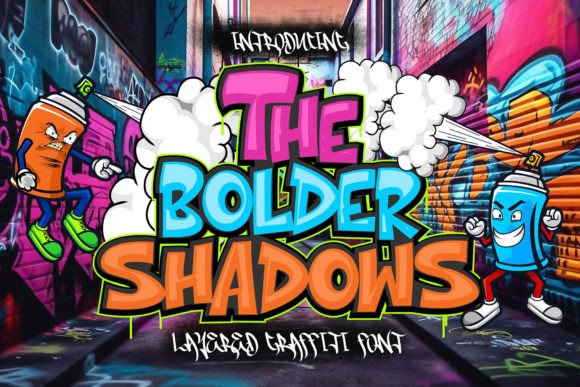
The Bolder Shadow
A bold urban graffiti font with sharp edges, listed for music posters, apparel and streetwear. Best for one loud word, never for a paragraph.
Next, three handwritten and script options. Each gives a sans headline a human second voice, the way a signature does on a letter.
Unlimited creative assets. Access to AI tools.
Commercial licence included.
Browse allCommercial license included

The Handwriting Bundle
Eight handwriting-style fonts that the listing says work in Canva Pro. Best for a signature line or a short quote over a clean sans, when you want a handmade accent.
Commercial license included

Good Vibes Only Duo
A retro duo of a display face and a monoline script. Best for a groovy poster or a social quote where the display line leads and the script adds a second voice.
Commercial license included

Clean Notes
A neat, legible handwritten font with a classic note-taking look. Best for captions, labels and short notes next to a sans headline.
Last, a serif and two decorative faces. I use these when the design needs a quiet accent and nothing louder.
Unlimited creative assets. Access to AI tools.
Commercial licence included.
Browse allCommercial license included

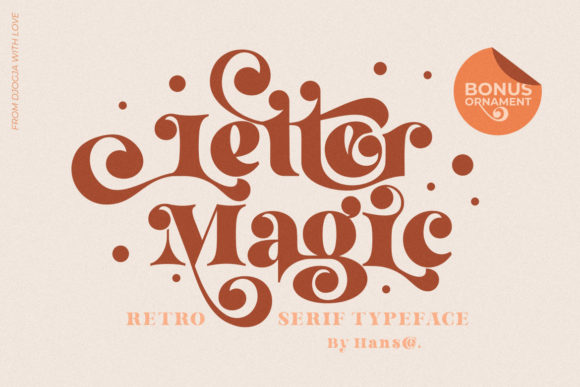
Letter Magic
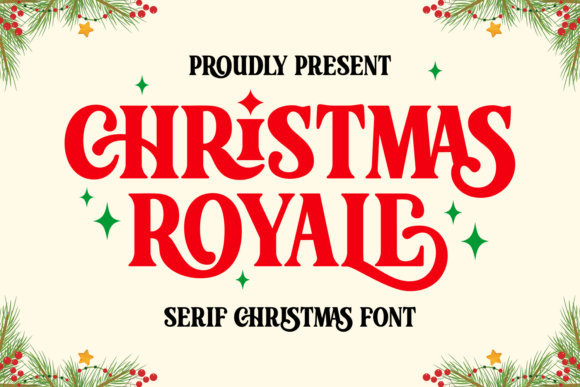
A playfully nostalgic serif with a vintage feel. The most direct partner here for a sans headline: set it for the subtitle at regular weight.
Commercial license included

Viktoria Monogram
A delicate, stylish decorative font. Best for initials or a single accent word on a calm sans layout.
Commercial license included

Lover
A friendly, cute decorative font for cartoon-style designs and children’s games. Best for a title that needs warmth, over a clear sans.
None of these replaces a good sans. They sit next to it, which is exactly where a design stops looking like the default. For a wider range, see Canva-ready font bundles on Creative Fabrica and apply the same two filters: the preview first, the license second.
Key Takeaways

FAQ
What is the best sans serif font in Canva?
There is no single best one. Montserrat, Poppins, Open Sans and Lato are the safe, popular choices, and League Spartan, Public Sans and Raleway are less common alternatives. Pick by the job: a readable face for small text and a more distinctive one for the headline.
Can you add fonts in Canva?
Yes, on a paid plan you can upload your own font file to a Brand Kit. Common formats such as OTF, TTF and WOFF work. The free plan keeps you in the Canva library.
Why does my Canva design look like a template?
The type was probably never set by you. Popular fonts, regular weight and default spacing give the same result as every other template. Change the weight, open the letter spacing and add a serif partner.
How do I make a sans serif font look more premium?
Use a bold headline against a light supporting line, open the letter spacing, and keep capitals for short labels. These settings change the look more than switching fonts does.
Can I use any font I upload to Canva for a client?
Only if the license allows commercial use. A font that installs and opens is not automatically licensed for client work, so read the license first.
Which sans serif fonts pair well with a serif?
A bold geometric sans pairs well with a classic serif at regular weight, and a light sans works with an italic serif accent. Keep to two fonts and change both shape and weight between them.
Ready to go past the library? Pick a font with the license already cleared and run the one-phrase test before you upload.