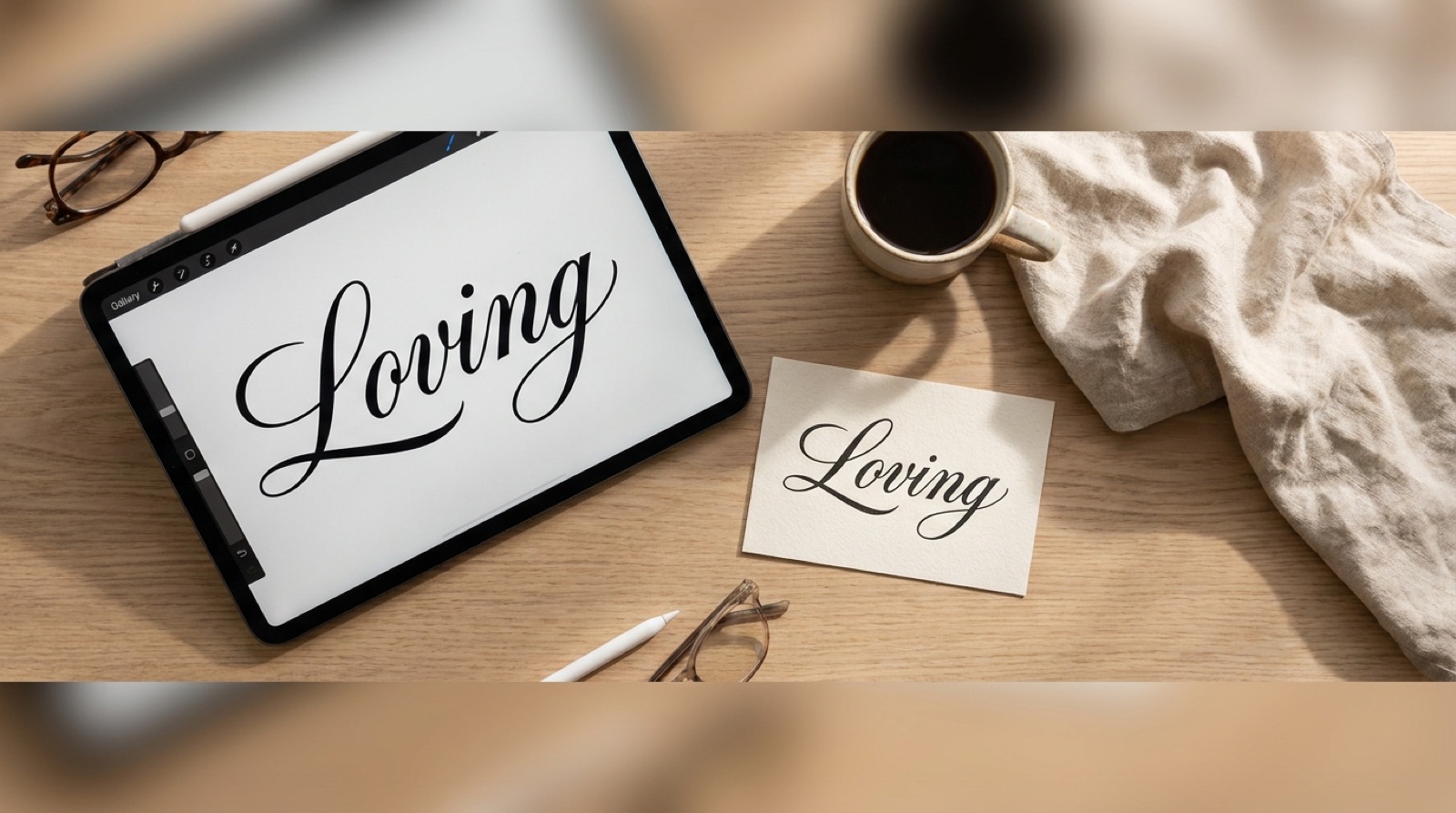
Search “best fonts for Procreate” and most guides show you a grid of pretty script faces with no mention of what happens after you tap download. Procreate itself has no font store and no built-in licensing check. It just reads whatever font is installed on your iPad, the same way it reads a font on any other app. That convenience is also the trap: nothing in the install process tells you whether the font you just added is safe to put on a client’s logo or a piece you plan to sell.
Quick answer: procreate fonts are only safe to sell work with if the license attached to the download says commercial use, and Procreate has no way of checking that for you. It installs and displays any font, licensed or not. Before you letter a client project, confirm the license, then confirm the file is a true font (OTF/TTF) and not a brush pretending to be one, since only an installed font shows up in Procreate’s text tool. Adding it takes one of four routes built into iPadOS: AirDrop, the Files app, the Fonts app itself, or a font-manager app. Most tutorials only cover one or two.
Where Procreate Font Licensing Actually Trips People Up
Procreate doesn’t sell fonts, doesn’t check licenses, and doesn’t warn you before you type a paying client’s name in a font you downloaded for free. The app’s job ends at “does this font render.” Everything past that is on you.
Two sources of fonts cause most of the confusion for anyone lettering commercial work on an iPad:
Free font sites and freebie sections on marketplaces. A download button is not a license. Plenty of “free” fonts are personal-use only, with a separate paid tier required the moment money changes hands. The font still installs and still types perfectly. The restriction lives in a license file most people never open, not in anything Procreate shows you.
Fonts bought or downloaded with a stated commercial license. The license comes attached to the download and states, in writing, what you’re allowed to sell. This is the only category where “can I put this on a logo I’m charging for” has an answer that doesn’t depend on guessing.
The same check applies whether the output is a Procreate lettering piece, a printed sign, or a logo file. Choosing a logo font runs through an identical licensing step before the design work even starts.
Three Checks Before You Install a Font You Plan to Sell With
1. Open the license file, not the product description. “Great for hand-lettering” or “perfect for branding” is marketing copy describing the look, not a grant of rights. The actual terms live in a license or read-me file bundled with the download. That’s the only place “commercial use” carries any weight.
2. Check whether the license covers what you’re actually delivering. A license can allow commercial design work but exclude merchandise, print-on-demand, or resale of the lettered output itself. Read that clause specifically if the Procreate piece is headed for a shirt, mug, or sticker sheet rather than a one-off client file.
3. Confirm you got an installable font, not just artwork. Some “font” listings on marketplaces are actually a set of pre-lettered PNG or SVG words, not a file your iPad can install as a typeface. If the product page doesn’t mention OTF or TTF anywhere, you’re looking at static art, not something you can type with in Procreate’s text tool.
 Pin it
Font or Brush? What Actually Works as Procreate Type
Every font, one commercial licence
The bundles I test at logo size live in one subscription — commercial use included, no per-font checkout.
“Fonts for Procreate” and “brushes for Procreate” get shopped for in the same breath, but they solve different problems and neither substitutes for the other.
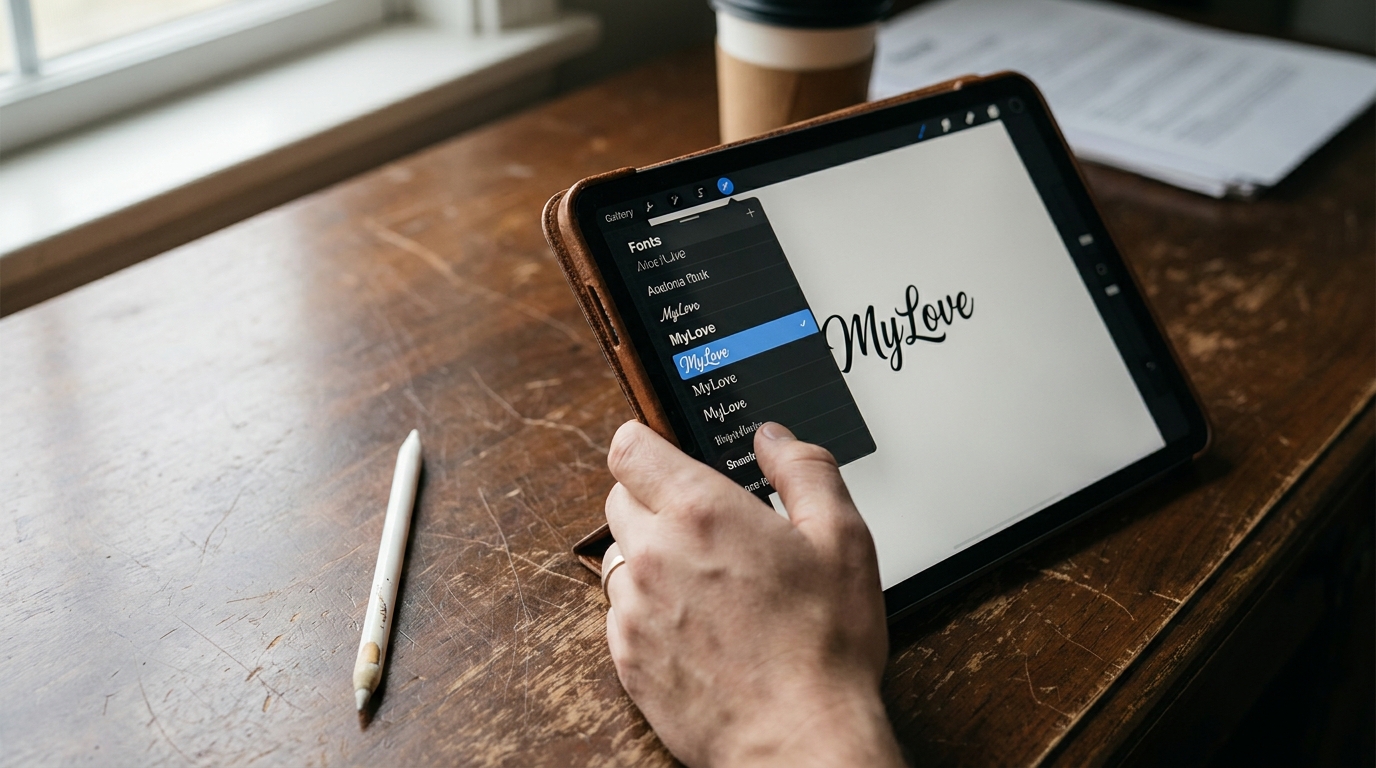
A font is a system-level file (OTF or TTF) that Procreate’s built-in Text tool reads once it’s installed through iPadOS, the same way any other iPad app would read it. Type with it, resize it, edit it like text, and it stays editable until you flatten the layer. A Procreate brush is a stamp or stroke preset used inside a drawing layer. It draws marks, including letterform-shaped marks, but it isn’t text; there’s no typing, no live editing, and no going back to change a word without redrawing it.
The mix-up happens because a lot of hand-lettered “brush fonts” are marketed loosely: a script-style typeface sold as a font behaves exactly like the paragraph above describes, while a “calligraphy brush set” sold for Procreate is a set of Procreate brush files (`.brushset`) meant to be drawn with by hand, not typed. Check the file extension on the product page before buying: `.otf`/`.ttf` installs as text, `.brush`/`.brushset` installs as a drawing tool.
The technical limit worth knowing before you buy for the swash version: Procreate’s Text tool has no OpenType feature panel. Programs like Illustrator or Affinity Designer let you toggle stylistic sets and automatically swap in swash alternates as you type. Procreate doesn’t have that panel, so a PUA-encoded font’s swash and alternate glyphs only appear if you type the specific alternate keyboard character mapped to them. The font works, but the “automatic” swash behavior advertised on the product page doesn’t happen inside Procreate itself.
How to Add Fonts to Procreate on iPad, the Short Way
Once a font’s license and file type check out, getting it into Procreate is an iPadOS step, not a Procreate step. The app just reads whatever’s already installed on the system.
Apple’s own Procreate Handbook documents four separate ways to get a font onto an iPad and installed: AirDrop a font file from a Mac directly to the iPad, open a font file saved in the Files app and tap Install, open the font inside the built-in Fonts app, or install through a third-party font-manager app. Most independent “how to add fonts to Procreate” guides cover only one or two of those four (usually just the Files app route) and skip AirDrop and the Fonts app entirely, which is exactly where people searching the topic get stuck if their font arrived by a different path.
The one step that trips people up regardless of which route they use: after installing, fully close and reopen Procreate. A font installed while Procreate is already running often doesn’t appear in the Text tool’s font list until the app restarts, which reads like a failed install when it’s actually just a caching issue.
 Pin it
The Procreate Fonts Cheat Sheet
Most style searches are really a question about the job the lettering needs to do. Here’s the shorthand version: the look people search for, the structural property that actually delivers it, and what to check before buying.
| What you searched | What it needs structurally | Check before buying |
|---|---|---|
| Cute Procreate fonts | Rounded terminals, even stroke weight, generous x-height | Readable at small size, test it typed at 40pt, not just the hero image |
| Aesthetic / boho Procreate fonts | Condensed letterforms or a dry-brush script with visible texture | Whether the texture is built into the glyph or a separate overlay brush |
| Handwritten Procreate fonts | Connected or near-connected script with natural baseline bounce | Whether numerals connect the same way the letters do |
| Calligraphy fonts for Procreate | High-contrast thick-to-thin strokes, true swash alternates | PUA encoding, and whether you’re willing to type alternate glyphs manually (no OpenType panel in Procreate) |
| Procreate lettering fonts for logos | Clean, well-spaced letterforms that hold up at both business-card and signage scale | Commercial and merchandise license, in writing |
The line that surprises people most is calligraphy. A font can be PUA-encoded with dozens of swash alternates and still require manually typing each alternate’s specific keyboard character inside Procreate, because the app has no automatic OpenType substitution. Budget the extra minutes for that before a rush client job, not during it.
Six Procreate Fonts With a Commercial License
Every font, one commercial licence
The bundles I test at logo size live in one subscription — commercial use included, no per-font checkout.
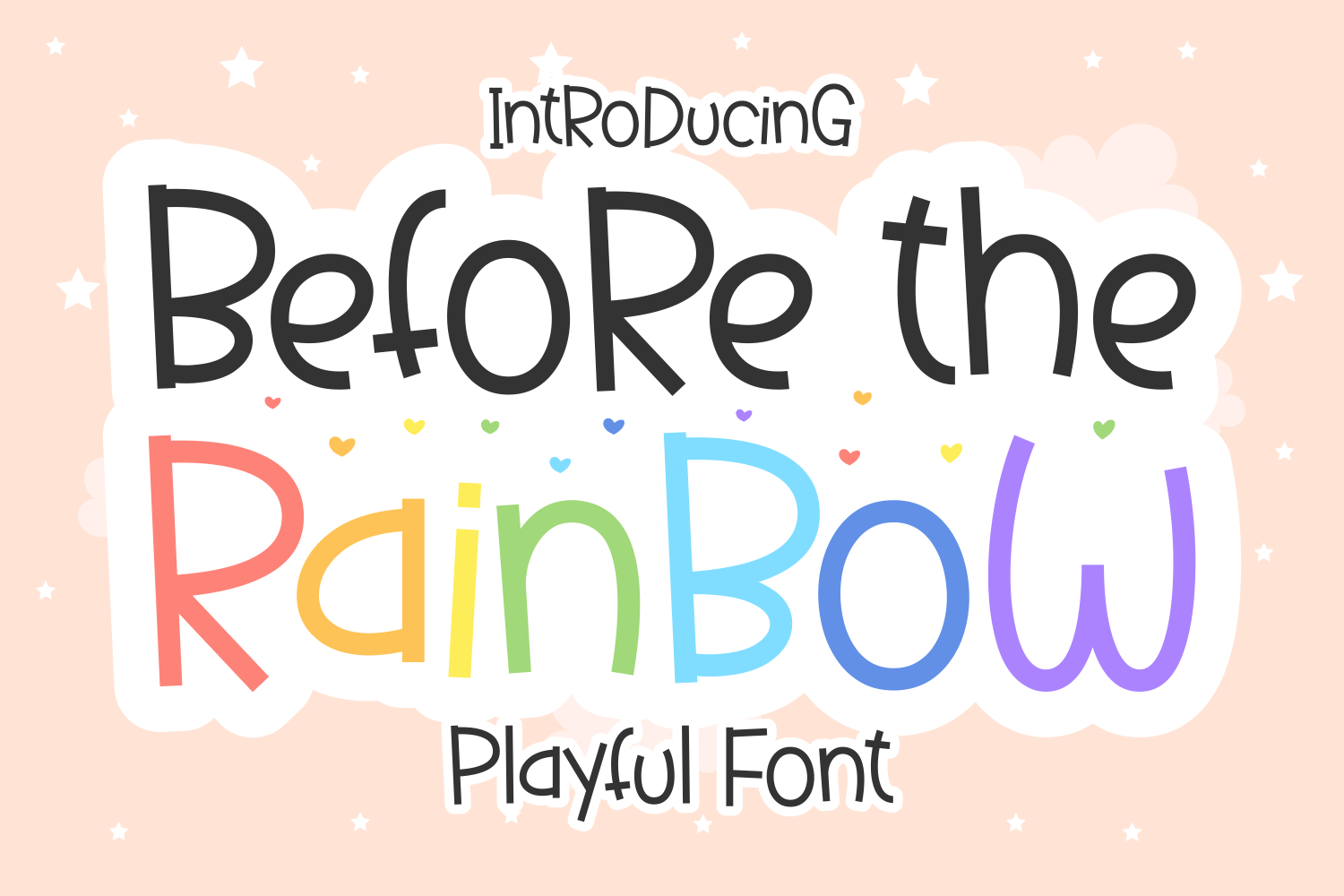
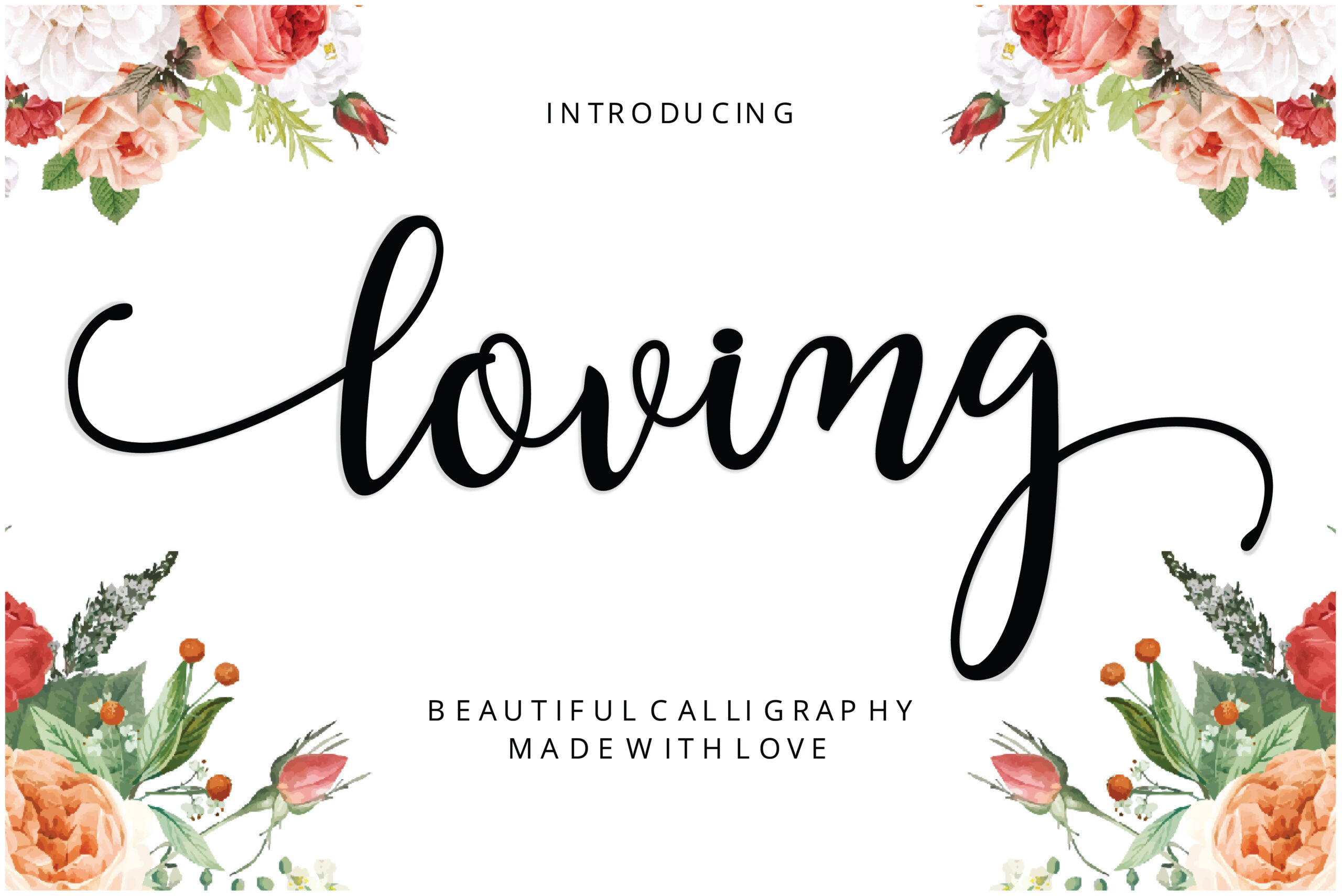
Each pick below is matched to a specific lettering job, not ranked against the others. All six ship as installable OTF/TTF files with a commercial license confirmed on the product page; read the current license terms before your first paid piece. One popular “calligraphy font for Procreate” listing that came up in this search got dropped from the picks: its product page never mentioned OTF or TTF anywhere, and its preview images were pre-lettered word art, not a font with a full glyph set, so it installs as artwork rather than as something typeable in Procreate’s text tool.
Unlimited creative assets. Access to AI tools.
Commercial licence included.
Get downloads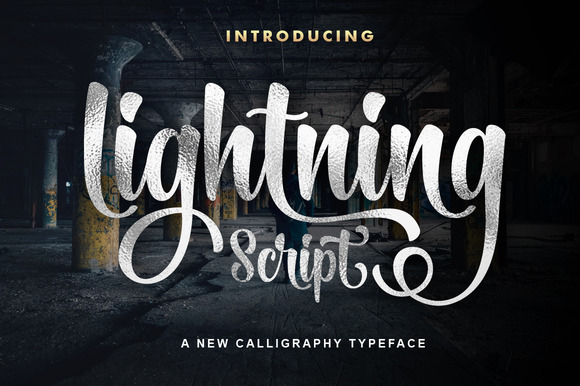
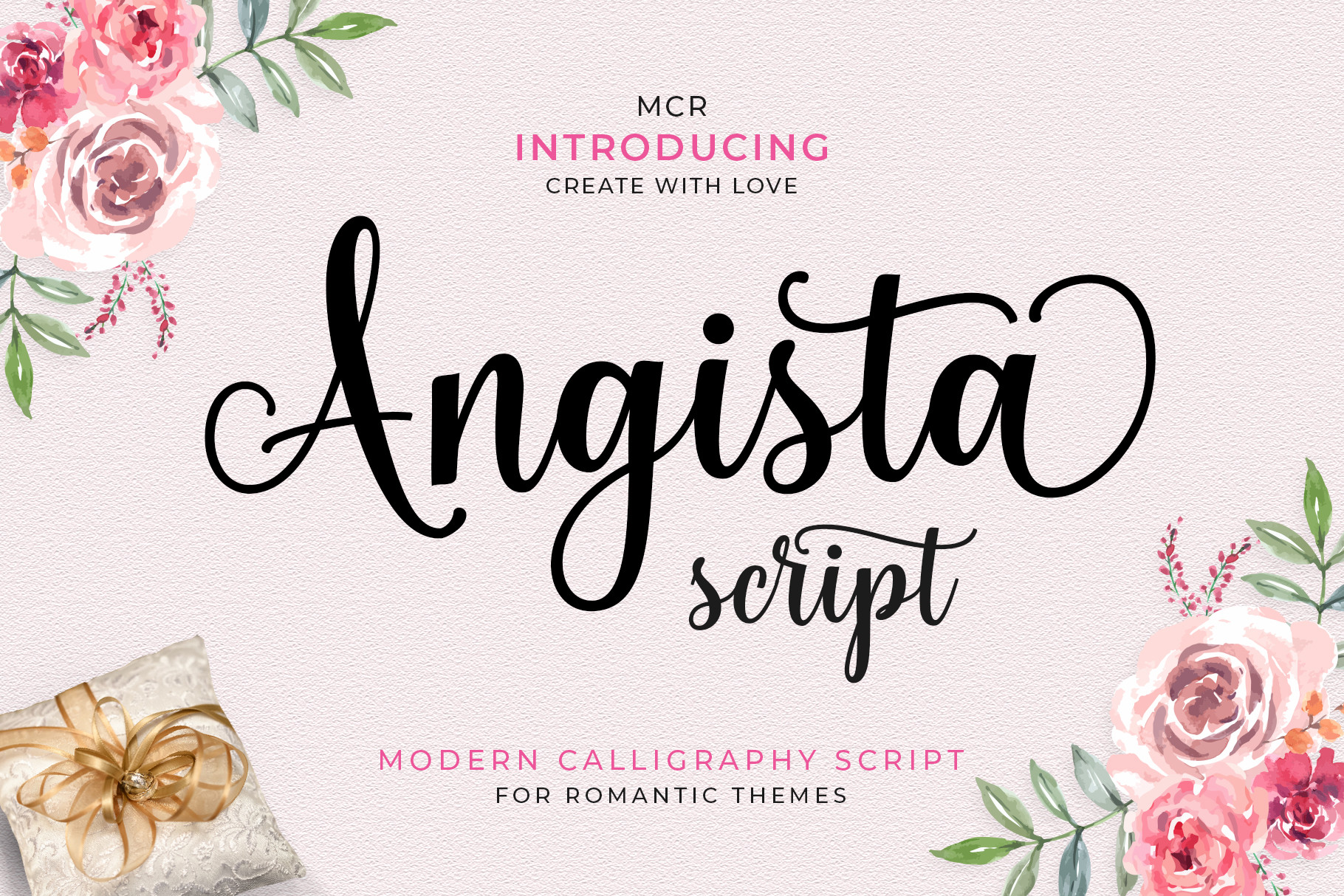
Branding and signage lettering → Lightning Script
A handwritten script with even stroke weight and a confident, unhurried baseline: the profile that reads well typed large on a sign or business card without the thin joins closing up. Straightforward glyph set, so it types cleanly on the first try instead of needing alternate keyboard characters.
Unlimited creative assets. Access to AI tools.
Commercial licence included.
Get downloads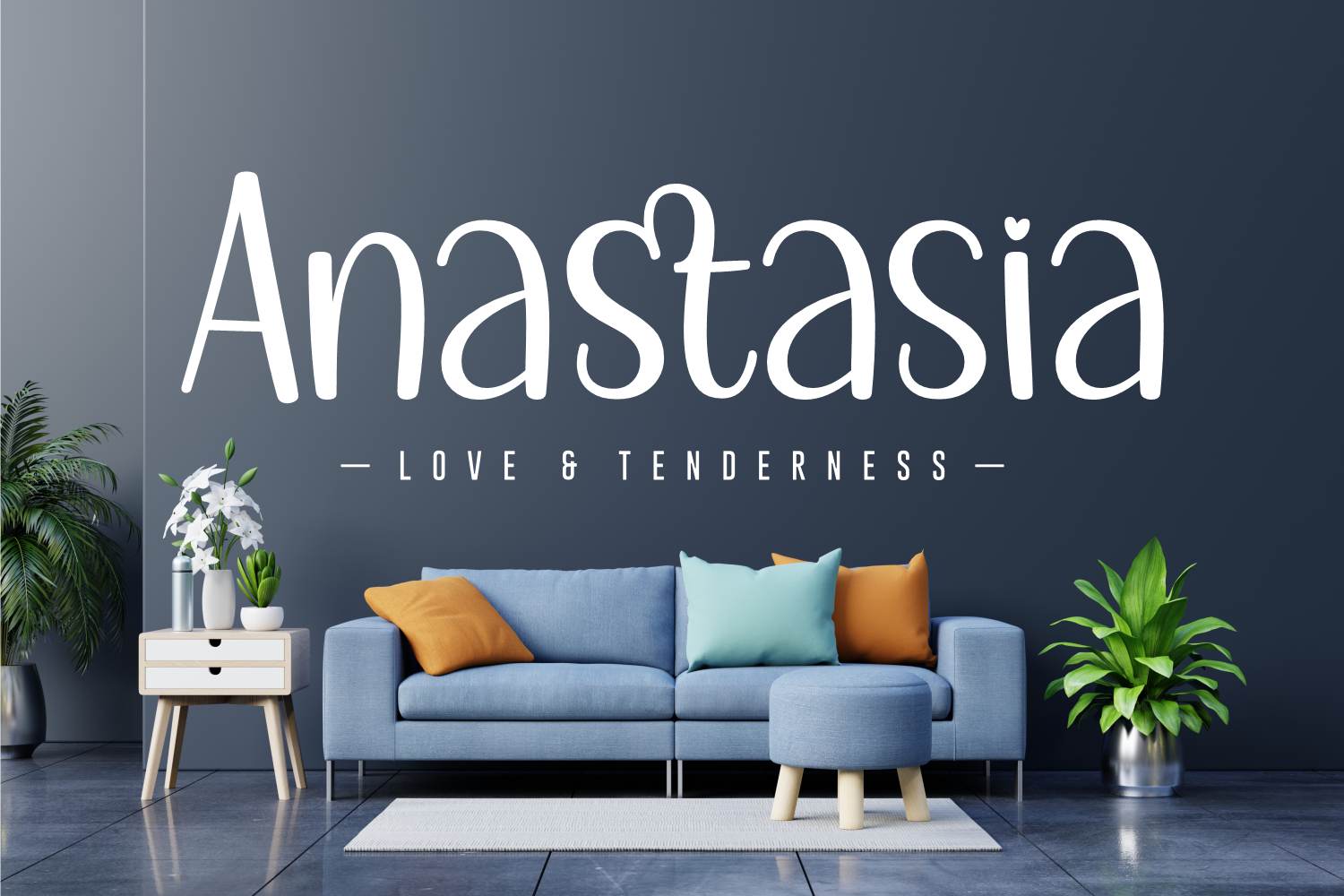
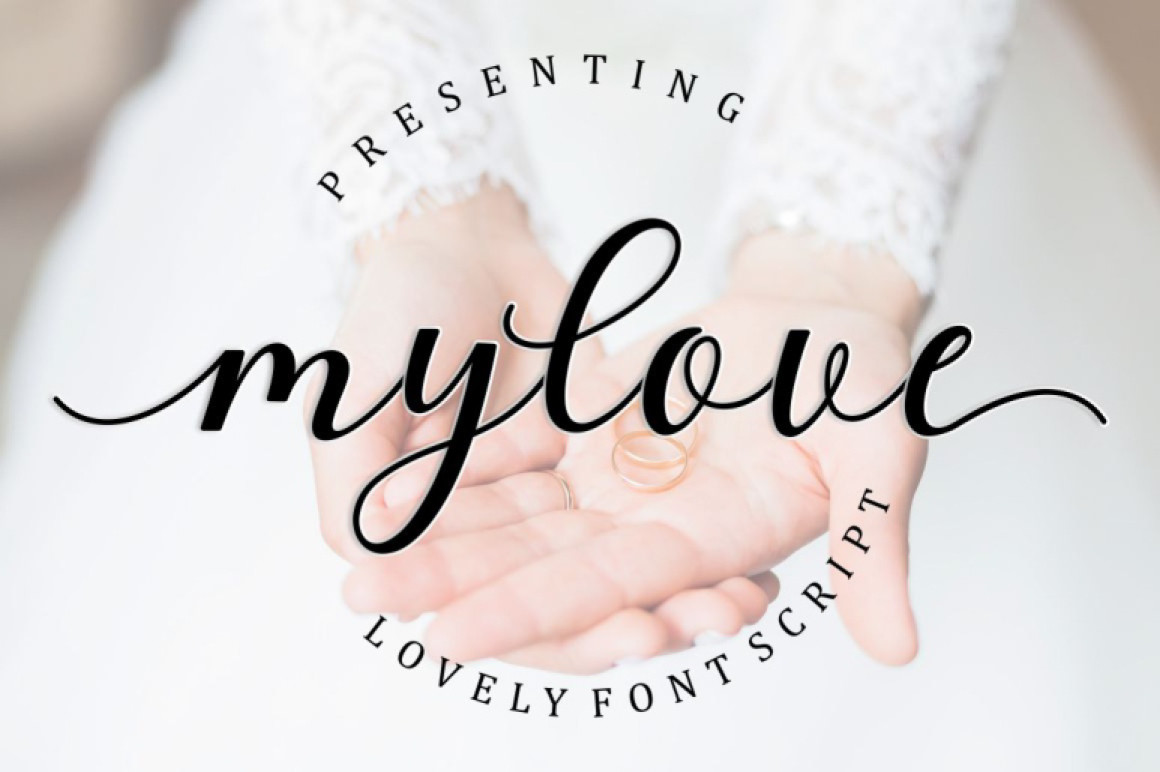
Gentle, rounded client lettering → Anastasia
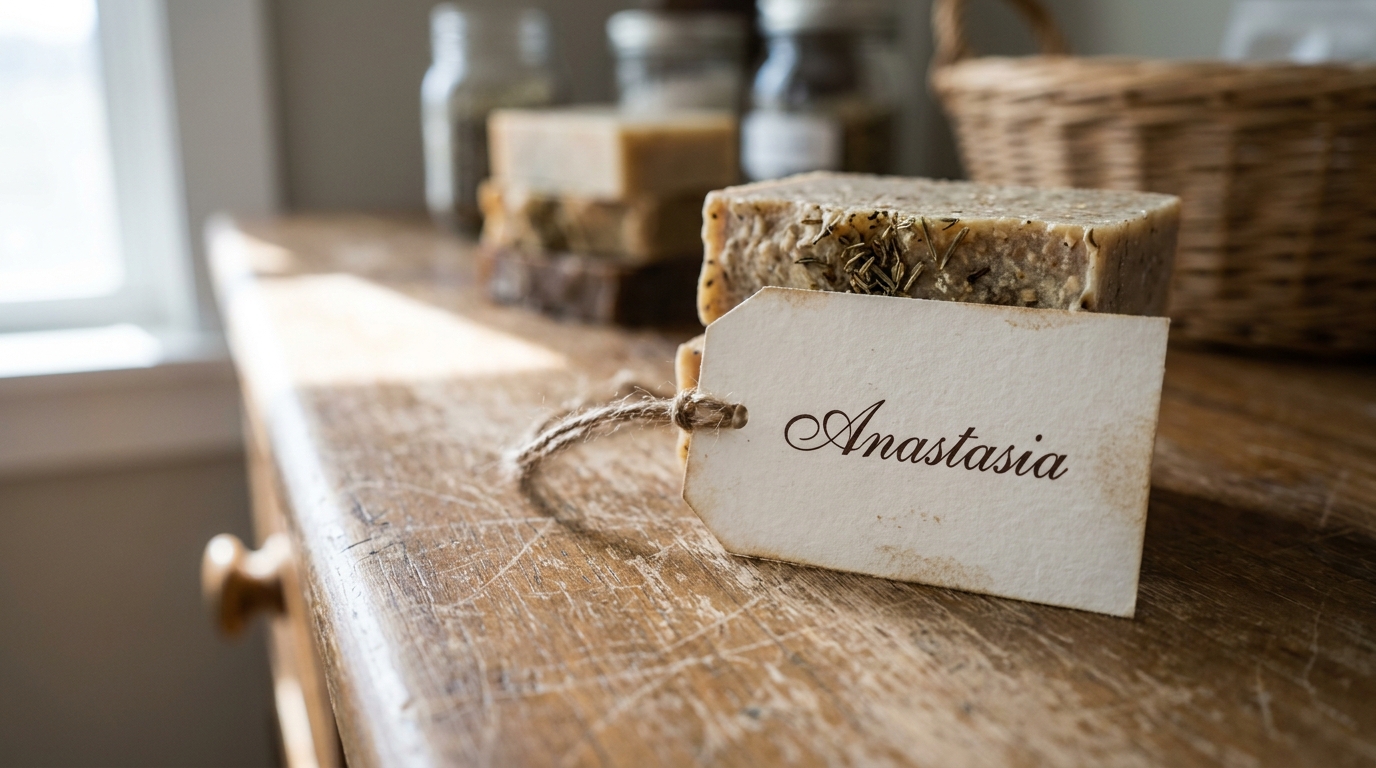
A well-rounded handwritten face with soft, even terminals and a relaxed rhythm between letters, built to look hand-lettered while staying fully typeable, so revisions are a retype instead of a redraw. Works at both card size and small-poster size without losing its warmth.
Match the Font to the Lettering Job, Not the Mood
The most common reason a typed-in-Procreate piece feels off isn’t the font choice as a matter of taste. It’s a mismatch between the letterforms and the size or surface the final piece actually lives on.
Signage and posters need even stroke weight; thin, high-contrast calligraphy loses its thinnest strokes when scaled up on a screen or printed large.
Invitations and small print need a script whose joins don’t close up at small point sizes, test the actual word at the actual size before finalizing.
Merch and POD output needs the license checked for resale specifically, not just “commercial use”, see the three checks above. The same resale question comes up with Cricut fonts sold for cut files, since both formats depend on a license that names commercial use in writing rather than a marketing phrase on the product page.
Swash-heavy calligraphy fonts need the extra time for manually typing alternate glyphs, since Procreate has no automatic OpenType substitution the way desktop design apps do.
Before a paid piece, type the client’s actual name or word at the actual export size and zoom to 100%. A font that looks resolved at 400% on the canvas can lose its thinnest joins at the size the client actually receives.
Key Takeaways
- Procreate installs and displays any font, licensed or not: the license check is entirely on you, not the app.
- A “font for Procreate” and a “brush for Procreate” are different file types: only an installed OTF/TTF is typeable text; a `.brushset` is a drawing tool.
- Procreate’s Text tool has no OpenType feature panel, so swash alternates in PUA-encoded fonts must be typed manually, not auto-substituted.
- Getting a font onto the iPad has four routes (AirDrop, Files app, the Fonts app, or a font manager) and a full app restart if it doesn’t show up right away.
- Type the actual client word at the actual export size before finalizing a paid piece.
FAQ
Can I sell artwork I made in Procreate using a free font?
Only if that free font’s license explicitly allows commercial use. Procreate doesn’t check licenses. It installs and types with any font on the system, so the answer lives in the font’s license file, not in anything the app shows you.
Why doesn’t a font I installed show up in Procreate’s text tool?
Usually because Procreate was already open when the font finished installing through iPadOS. Fully close and reopen the app; the font list refreshes on launch, not while the app is already running.
What’s the difference between a Procreate font and a Procreate brush?
A font (OTF/TTF) is installed at the iPadOS level and works with Procreate’s Text tool, type it, resize it, edit it like text. A brush (`.brushset`) is a stroke preset used inside a drawing layer; it can create letterform-shaped marks, but there’s no typing and no live text editing.
Can I access swash and alternate glyphs while typing in Procreate?
Not automatically. Procreate’s Text tool has no OpenType feature panel, unlike desktop apps such as Illustrator or Affinity Designer. A PUA-encoded font’s alternates only appear if you type the specific alternate keyboard character mapped to that glyph.